Brand Identity
Define your brand identity and keep assets consistent, recognizable, and aligned with your standards across channels.
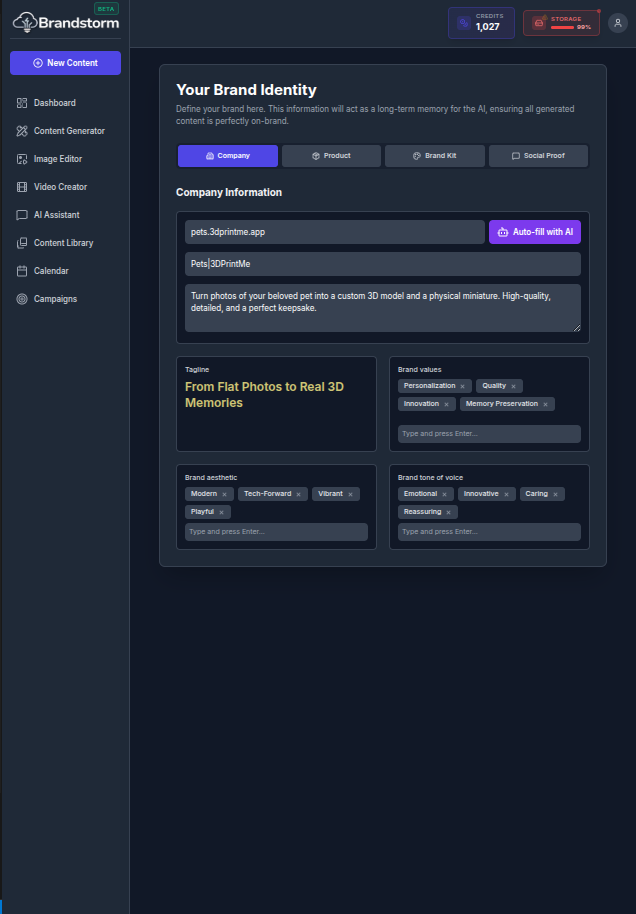
Brand Identity
Your Brand Identity is a persistent brand profile the AI references for future content generation. Capture foundational details such as company information, products or services, messaging and tone, visual identity guidelines, and a brand character/persona to keep outputs consistent, recognizable, and aligned with your standards across channels.
How to Configure Your Brand
- Navigate to your User Profile Menu.
- Select Brand.
- In the section Company Information, type your company website URL.
- Click Auto‑fill with AI to instantly generate your brand profile.
Note: You may also fill in your brand identity information manually or edit what the AI generates for you.
Key Benefits
The AI scans your website and pre-populates key details, so you can review and refine instead of starting from scratch.
- Company Information: Define your company name, description, brand values, preferred aesthetic, and tone of voice.
- Products & Services: Manage your offerings, sales pitch, target audience, pricing, and guarantees.
- Brand Kit: Set up your logo, fonts, color palette, and imagery—and optionally create a mascot.
- Social Proof: Organize testimonials and case studies you can reuse in ads and marketing content.
All this information will act as a long-term memory for the AI, ensuring all generated content is perfectly on-brand.
🎥 Video Walkthrough Steps
- Navigate: Go to the Brand Identity page.
- Show Sections: Scroll through the page to show the different sections (Voice, Attributes, Colors, Guidelines).
- Edit Brand Voice:
- Click the Edit button in the Brand Voice section.
- Select "Witty" from the dropdown.
- Click Save.
- Add Attributes:
- Click Add Attribute in the Brand Attributes section.
- Type "Sustainable" and press Enter.
- Add another attribute like "Community-focused".
- Update Colors:
- Click on the Primary Color swatch.
- Show the color picker and select a new color.
- Click Save.
- Add Guidelines:
- In the Guidelines section, add a "Do" rule: "Always tag partner brands".
- Add a "Don't" rule: "Don't post after 6 PM".
- Final Review: Scroll to the top to show the updated brand settings.