Social Connections 3 min read Updated Feb 2026
Connecting Social Media Accounts
Link your social media accounts to enable automatic publishing, streamline scheduling from one dashboard, and keep your content distribution consistent across channels.
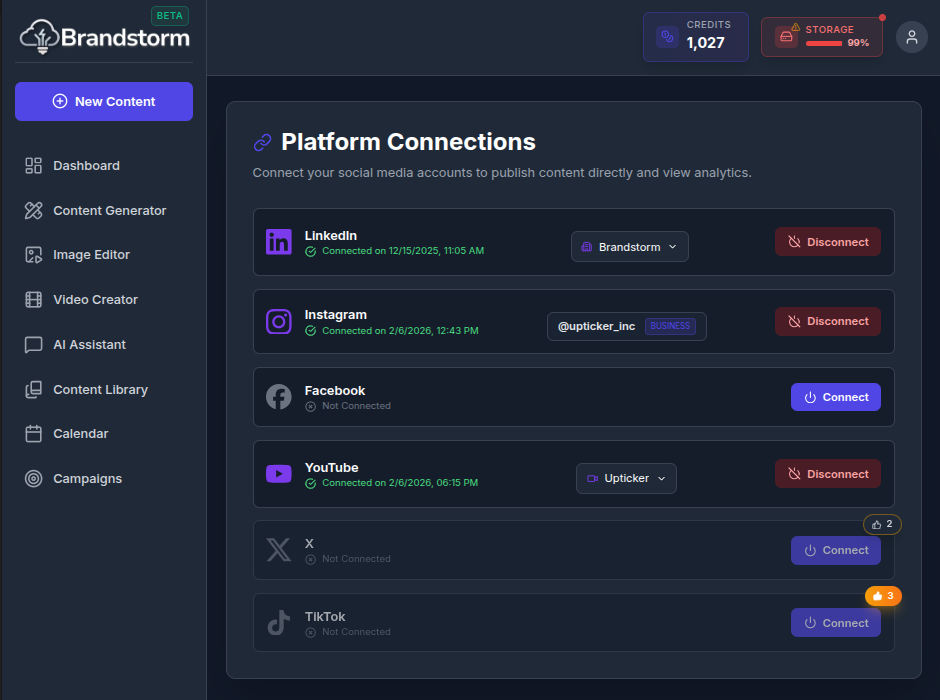
Connecting Your Accounts
To get the most out of Brandstorm, connect your social media profiles so the platform can pull in your content and performance data, centralize your channels in one dashboard, and tailor insights and recommendations to your brand.
Supported Platforms
- LinkedIn: Post Articles (Long-form text), Text-only (Short-form text), Images and Videos.
- Instagram: Post Images, Carousels, Stories and Reels.
- Facebook: Post Status/Text Posts, Images and Reels.
- YouTube: Upload Shorts and Long-form Videos.
- X: Coming Soon
- TikTok: Coming Soon
How to Connect Your Accounts
- Navigate to your User Profile Menu.
- Select the option Connect.
- Find the platform you want to connect (e.g., YouTube).
- Click Connect.
- You will be redirected to the platform's authorization page.
- Grant the necessary permissions.
- Once redirected back, you'll see your account listed as "Connected".
Note: If you have more than one Facebook page, LinkedIn page, Instagram professional account, or YouTube channel, you will see a dropdown to select which one you want to use when publishing.
🎥 Video Walkthrough Steps
- Navigate: Go to the Connections page.
- Show Platforms: Scroll to show sections for Instagram, Facebook, and YouTube.
- Simulate Connect:
- Hover over the Connect button for YouTube.
- (Optional) Click it to show the popup/redirect (if safe/configured), or just describe the action.
- Show Connected State: Point to an already connected account (if any) to show the "Disconnect" option or green "Connected" badge.
Was this article helpful?