Video Creator Studio
Turn scripts into captivating videos automatically.
Video Creator Studio
Create professional-looking videos without complex editing software required.
How to Create a Storyboard
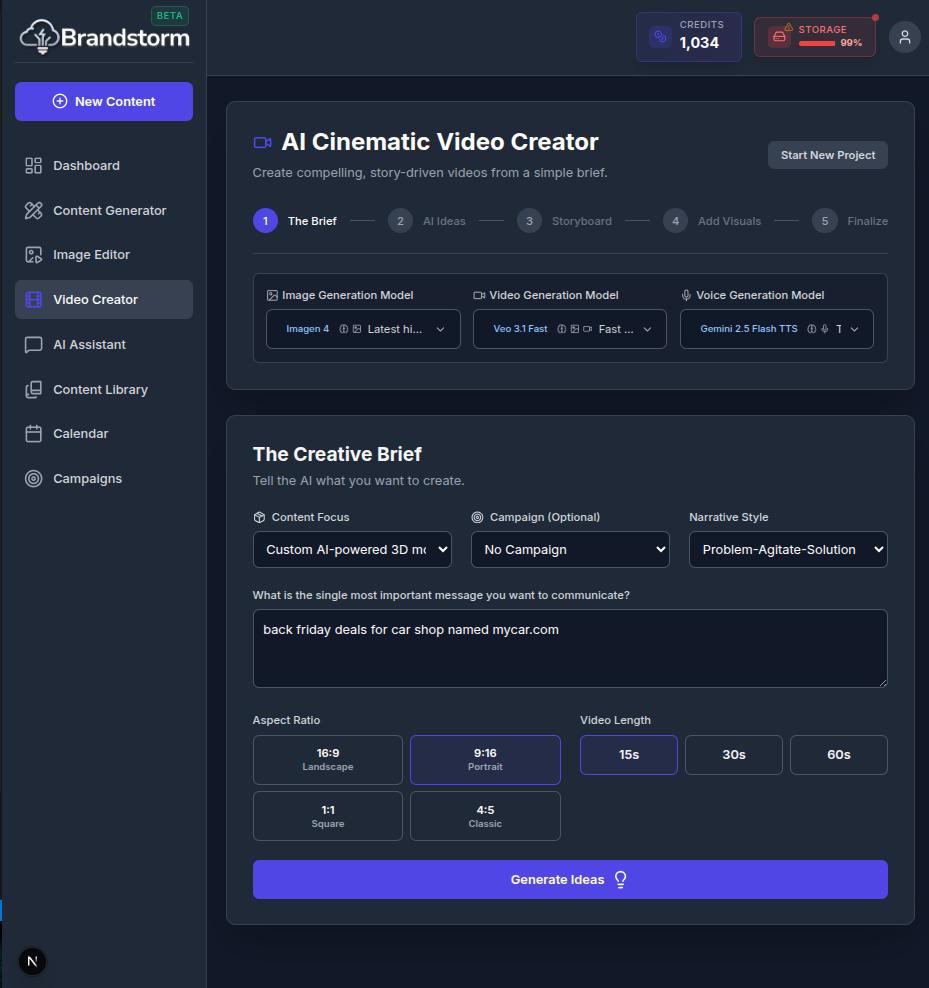
- Navigate to Video Creator.
- Select your Content Focus:
- No brand context: Create generic content without brand inputs;
- General (Brand-level): Generate content aligned with your brand identity, including voice, tone, and visual style;
- Products/Services: Generate content tailored to your offerings, using the product/service details in your brand identity.
- Select your marketing Campaign, if any.
- Select a Narrative Style to shape the structure, tone, and pacing of your message. Pick from Problem–Agitate–Solution (clarify urgency and value), The Hero’s Journey (customer-as-hero transformation), Bold Declaration (strong point of view and conviction), or Inspirational Story (emotion-led motivation) to generate content that fits your audience and objective.
- Briefly describe the most important message you want to communicate.
- Set your Aspect Ratio and Video Length to match your target platform.
- Click Generate Ideas.
- Choose one of the AI-generated concepts based on your brief, to turn into a storyboard.
- Review your storyboard: script and visual plan are ready. Edit them before you continue.
- After you review storyboard, click Looks Good, Add Visuals.
Add Visuals
Bring your storyboard to life by adding scene-by-scene visuals. Generate images with AI for a consistent style, or upload your own assets to match your brand—then preview how each visual pairs with the script before moving forward.
How to Edit Scenes
For each scene, you can edit visual, voiceover, sound effect, music, visual type and transition between scenes.
- Review initial prompt and make adjustments as necessary.
- Click Next: Start Frame.
- Click Generate, to create your input image.
- If you are happy with the image, click Next: Scene Video. If not, click Regenerate Image to try another option.
- Click Generate Video.
- If you are happy with the video, click Next: Voiceover. If not, click Regenerate Video to try another option.
- You can edit the voice script, if necessary, and Select a Voice.
- Click Generate.
Complete each scene one by one, applying your visuals and audio choices as you go. When you’re ready, click Finalize Video to automatically compile every scene into a single finished video—complete with transitions, voiceover, music, and sound effects.
🎥 Video Walkthrough Steps
(Use these steps to record the "Video Creator" screencast)
- Navigate: Go to the Video Creator.
- Select Template: Choose "Promotional" use case.
- Generate Script:
- Type "New Coffee Blend Launch" in the topic box.
- Click Generate Script.
- Edit Scenes:
- Click on Scene 1.
- Show how to change the background image (search stock or generate).
- Click on Scene 2.
- Edit the voiceover text slightly.
- Preview: Click the Preview button to show the video playing.
- Export: Click Export Video.