Planning & Assets 2 min read Updated Feb 2026
Managing Your Content Library
Organize, filter, and reuse your creative assets.
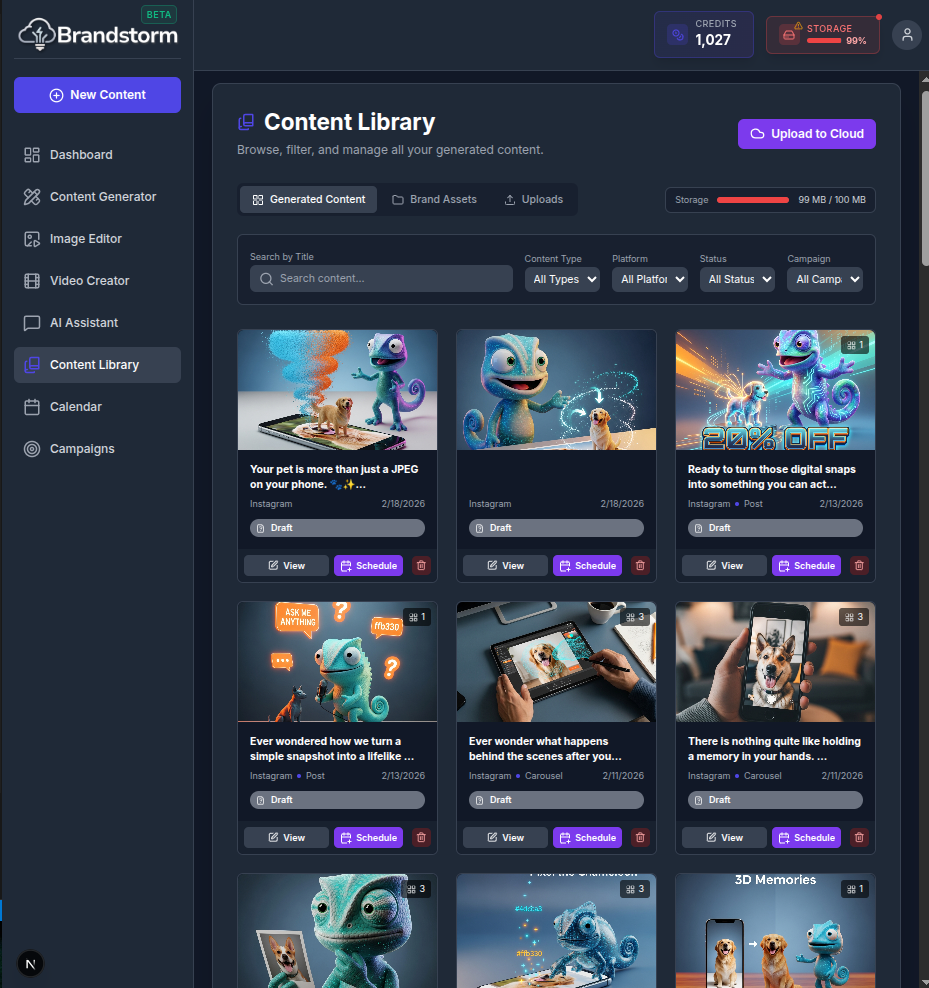
Content Library
Your Content Library is a centralized hub for everything you create—making it easy to review, reuse, and share assets across projects and campaigns:
- Scripts
- Storyboards
- Images
- Videos
Search and Filter
Find the right asset in seconds. Use powerful search and filters to browse your library, and group content for reuse, so teams stay aligned and production keeps moving.
- Search by Title
- Filter by Content type
- Filter by Platform
- Filter by Status
- Filter by Campaign
🎥 Video Walkthrough Steps
(Use these steps to record the "Content Library" screencast)
- Navigate: Go to the Content Library.
- Browse: Scroll to show the grid of assets (images, text, videos).
- Filter:
- Click the Filter menu.
- Select "Images Only".
- Show the updated grid.
- Search: Type a keyword (e.g., "coffee") in the search bar.
- Open Asset: Click on one image to open its details view.
Was this article helpful?