Settings & Billing 3 min read Updated Feb 2026
User Profile & Account
Manage your account, team, and subscription settings.
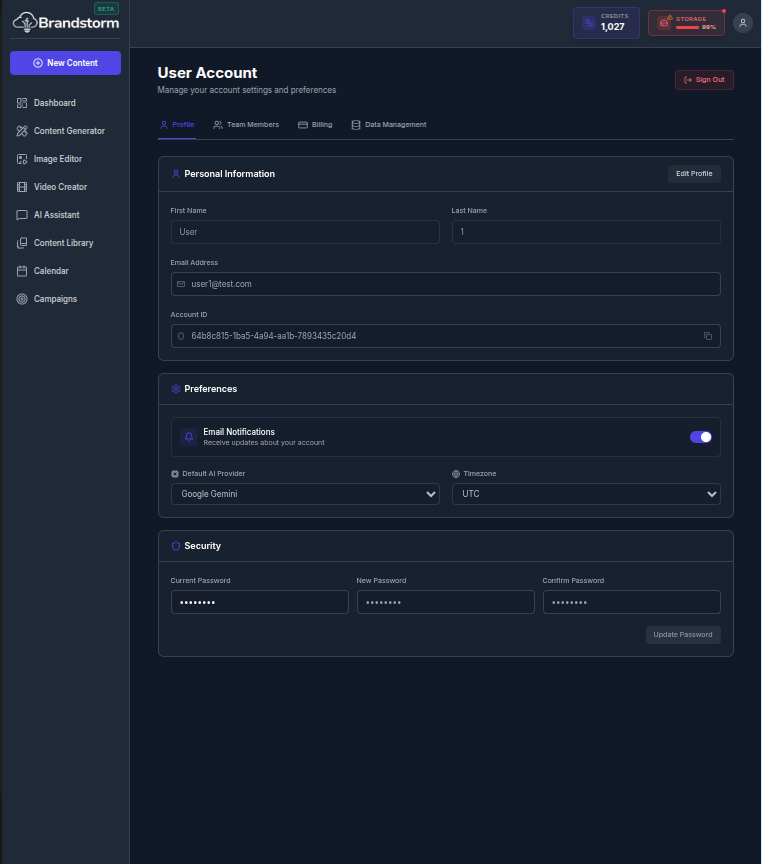
User Profile & Account Settings
Update your account details, manage team members and permissions, and maintain your subscription plan, and payment method.
How to Access Your Profile
- Navigate to your User Profile Menu.
- Select Profile & Account.
- Manage Profile, Team Members, Billing, and Data Management.
Profile
Manage your personal account details and how you use the app.
- Name: Update your display name.
- Preferences: Turn email notifications on/off, set your default AI provider, and update your time zone.
- Security: Reset your password to keep your account secure.
Team Members (Coming Soon)
Invite colleagues to your workspace, manage access by assigning roles, and control what each person can do (permissions and actions).
Billing
Manage your plan and payments, and purchase credits when you need them.
- Subscription: View and manage your subscription, upgrade or downgrade your plan, and monitor data usage.
- Credits: Buy credits as needed across three packages, and track purchases, transactions, and credit consumption.
Data Management
Import and export your data, or reset your workspace to start fresh. For flexibility and performance, some data is stored locally in your browser while other data is securely stored in the cloud.
- Clear All Data: Clearing your data will permanently delete all your local storage data from your browser. This action cannot be undone.
- Delete Account: Permanently delete your account and all associated data. This action is irreversible and will remove all your content, brand profiles, social connections, and more.
Was this article helpful?