Settings & Billing 3 min read Updated Feb 2026
User Settings
Customize user settings.
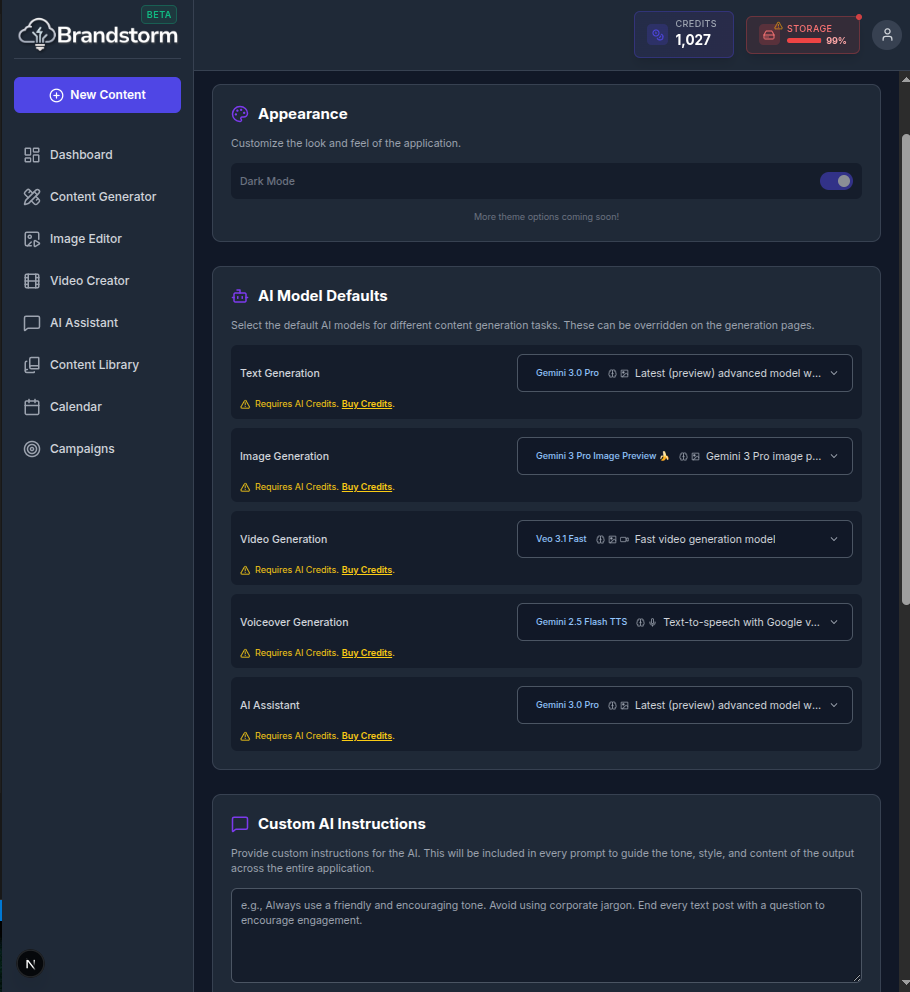
User Settings
Configure your app preferences, manage your default AI models and instructions, notifications, and provide custom instructions for the AI, to keep everything running the way you want.
Features
- Profile: Update your profile information.
- Security: Manage your security settings.
- Notifications: Customize your notification preferences.
How to Access Your Settings
- Navigate to your User Profile Menu.
- Select Settings.
- What you can customize:
- Appearance (Coming Soon): Customize the look and feel of the application.
- AI Model Defaults: Select the default AI models for different content generation tasks: Text, Image, Video, Voiceover, and AI Assistant.
- Custom AI Instructions: Provide custom instructions for the AI that will apply to all future requests.
- Notifications (Coming Soon): Control how you receive notifications from the app.
- AI Learning (Coming Soon): View and manage the AI's accumulated learning points from your feedback and interactions.
🎥 Video Walkthrough Steps
- Navigate: Go to the Settings page.
- Show Sections: Scroll to show sections for Profile, Security, and Notifications.
- Edit Profile: Click "Edit" on the Profile section, change the name, and save.
- Security: Click on "Two-Factor Authentication" and show the toggle/setup process.
- Notifications: Show the notification preferences and toggle a few options.
Was this article helpful?