Planning & Assets 3 min read Updated Feb 2026
Scheduling with the Calendar
Plan your content strategy with a drag-and-drop calendar.
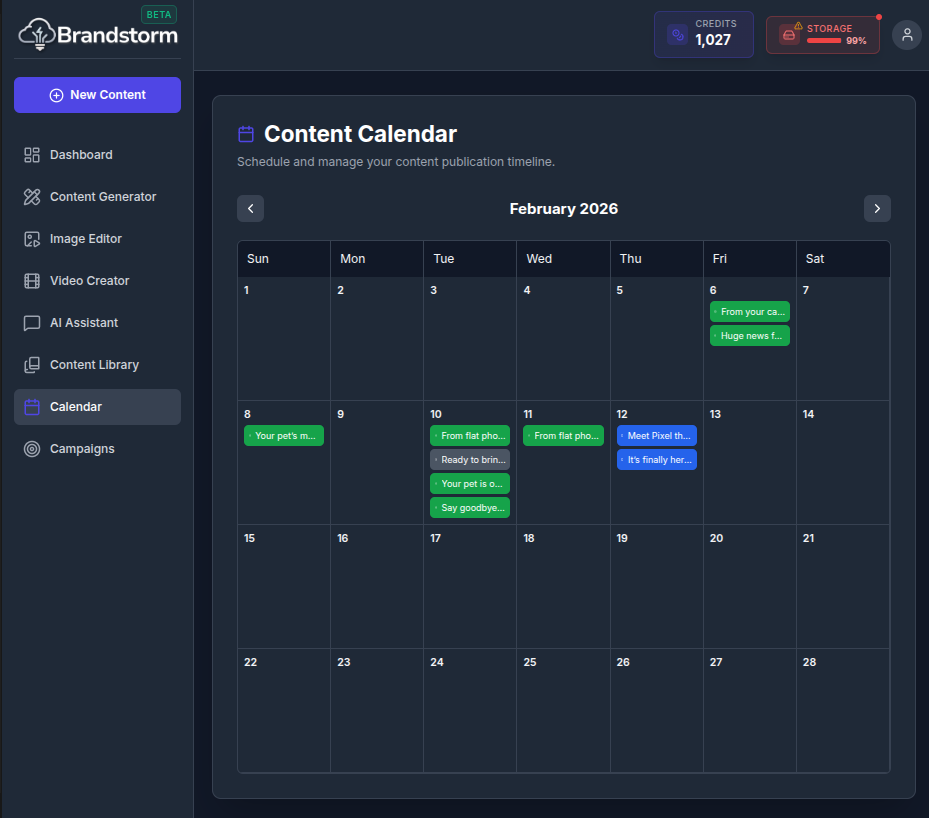
Content Calendar
Stay on track with the Content Calendar, a centralized place to plan upcoming releases, schedule publish dates, and track content status across channels so teams stay aligned and launches happen on time.
Features
- Drag & Drop: Move scheduled posts to different days easily.
- Quick Add: Click on any date to start creating content for that day.
- Status Indicators: See which posts are Drafts, Scheduled, or Published.
Scheduling Content
You can schedule content directly from the Content Generator or the Content Library.
🎥 Video Walkthrough Steps
(Use these steps to record the "Calendar" screencast)
- Navigate: Go to the Calendar.
- View: Show the month view with some sample posts.
- Drag & Drop: Click and drag a scheduled post from one day to another.
- Create New:
- Click on an empty date cell.
- Show the "New Post" modal appearing.
- Type a quick title (e.g., "Morning Update") and close/save.
- Switch View: Switch from "Month" to "Week" view.
Was this article helpful?