Content Studio 4 min read Updated Feb 2026
Generating Content
Create engaging social media posts, blogs, and captions in seconds.
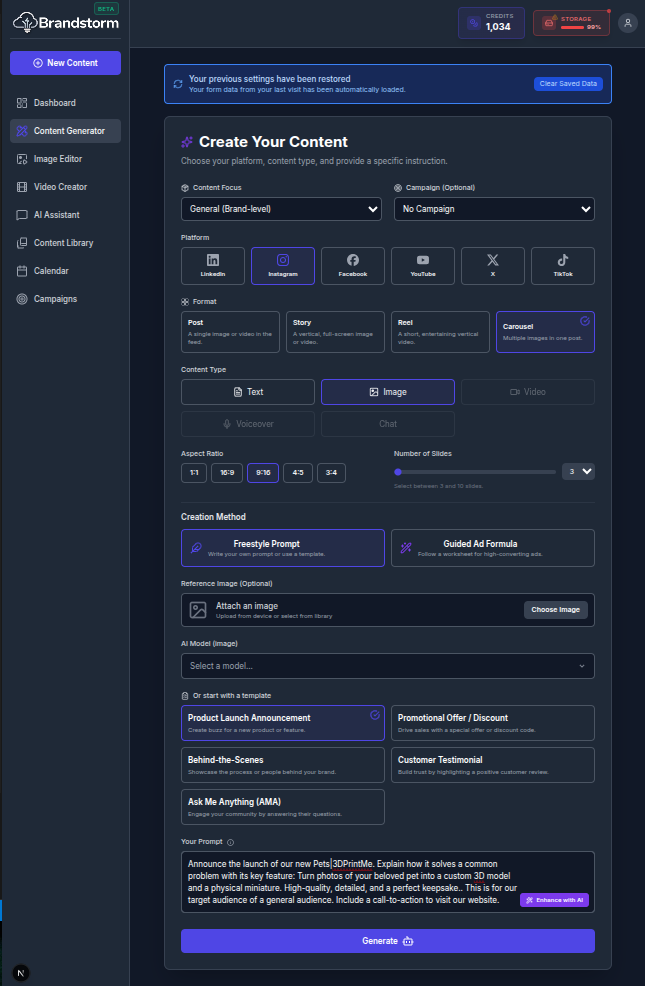
Using the Content Generator
The Content Generator is the main workspace for creating content quickly and consistently, drafting copy and producing matching visuals for use across channels and formats.
How to Generate Your Content
- Navigate to Content Generator.
- Select your Content Focus:
- No brand context: Create generic content without brand inputs;
- General (Brand-level): Generate content aligned with your brand identity, including voice, tone, and visual style;
- Products/Services: Generate content tailored to your offerings, using the product/service details in your brand identity.
- Select your marketing Campaign, if any.
- Choose your publishing Platform (e.g., LinkedIn, Instagram, YouTube, Facebook).
- Choose the content Format for your selected platform, from articles and posts to carousels and short videos.
- Choose the Content Type, and when required, set the Aspect Ratio to match the format (e.g., square, portrait, landscape) for the selected channel.
- Choose the Creation Method:
- Freestyle Prompt: Full control to write from scratch or use ready-made templates;
- Guided Ad Formula: Follow a step-by-step structured worksheet to create high-performing ads.
- An initial draft is generated. If needed, refine it directly in the editor or tap Enhance with AI to sharpen wording, boost clarity, and align the tone to your brand.
- Click Generate.
- When you’re ready, save or schedule your post.
🎥 Video Walkthrough Steps
(Use these steps to record the "Content Generator" screencast)
- Navigate: Go to the Content Generator page.
- Generate Text:
- Type "The Future of AI Marketing" in the Topic box.
- Select "LinkedIn Post" as the type.
- Click Generate and wait for the result.
- Highlight the generated text with your mouse.
- Generate Image:
- Switch to the Image tab.
- Type "Futuristic office with robots" in the prompt.
- Select "16:9" aspect ratio.
- Click Generate Image.
- Hover over the result once it appears.
- Save: Click the Save to Library button.
Was this article helpful?