Dashboard Overview
Get familiar with the Brandstorm dashboard. Learn where to find your stats, recent content, and quick actions.
The dashboard is your command center. This tutorial walks through each section so you know exactly where to find everything.
1. Account Overview
At the very top of the dashboard you'll see your account summary. This shows your account name, type (Individual or Company), your role, and team member count (for company accounts). The account ID is shown on the right for reference.

2. Quick Stats
The stat cards give you a snapshot of your content performance:
- Total Content — All content items across your account
- Total Followers — Combined follower count from all connected platforms
- Active Campaigns — Number of currently running campaigns
- Scheduled — Content queued for future publication
- Published — Content that has gone live

3. Recent Content
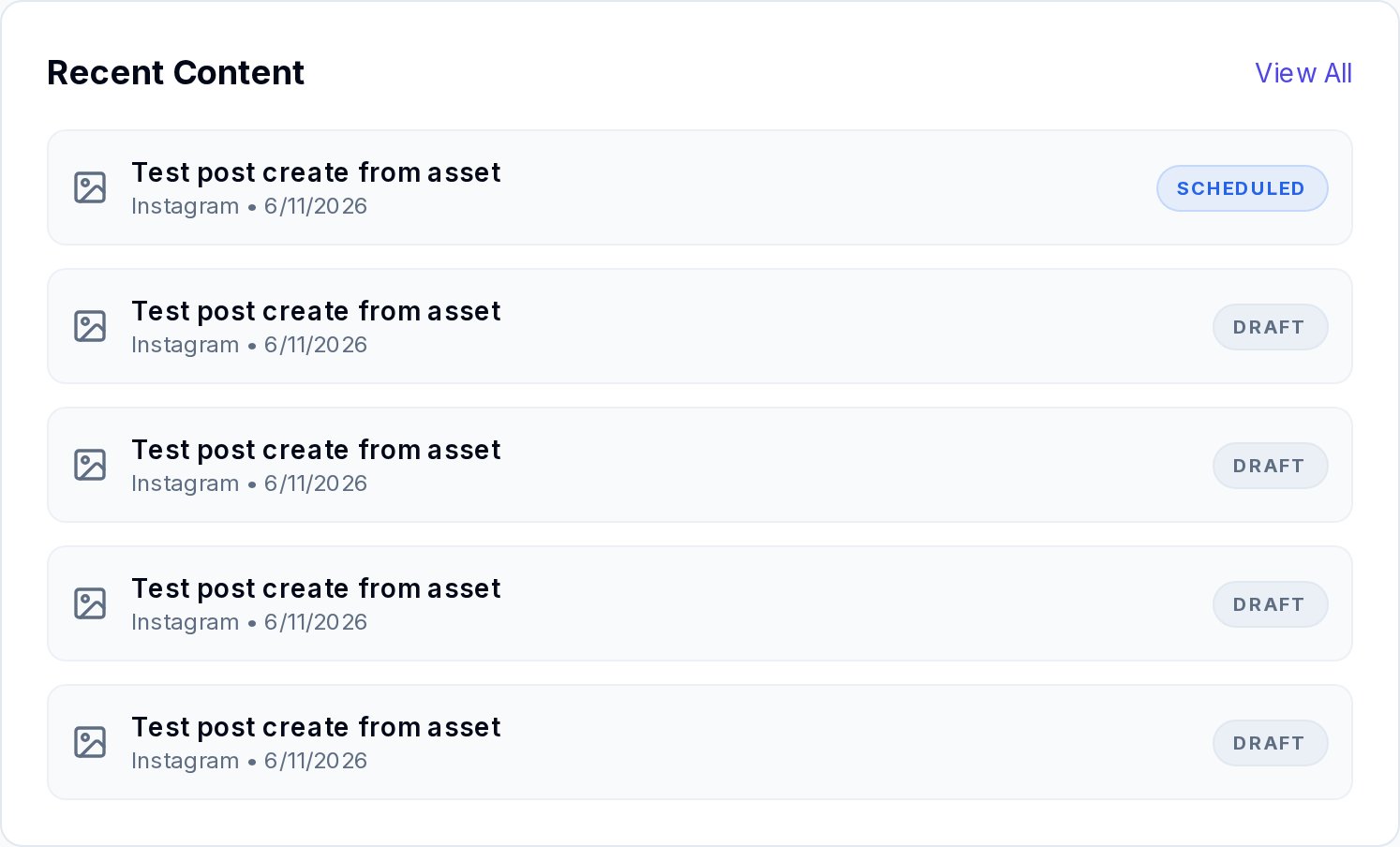
The Recent Content panel lists your 5 most recently created items. Each entry shows the content type icon, title, target platform, creation date, and status (Draft, Scheduled, or Published). Click View All to open your Content Library.
4. Platform Analytics
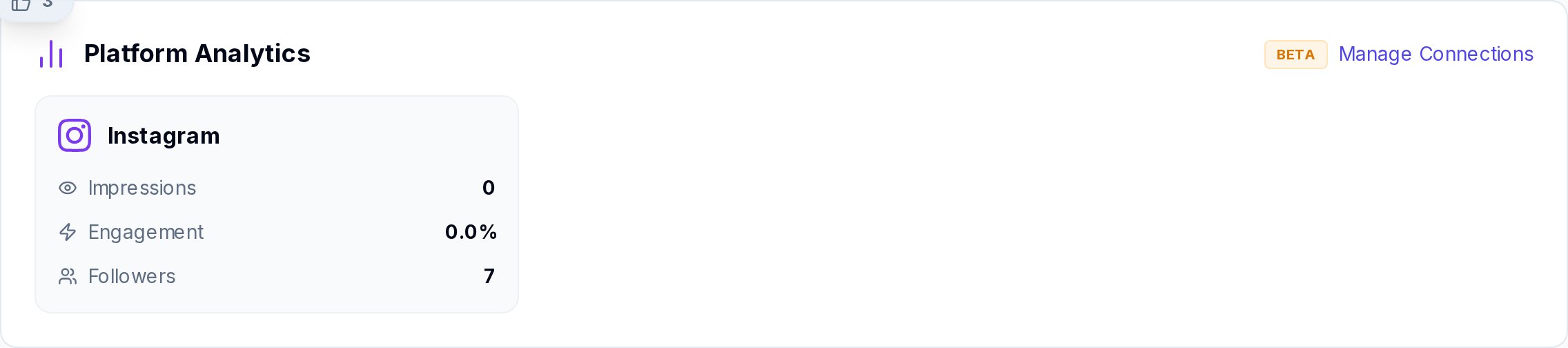
The Platform Analytics section displays performance data for each connected social account. You can see Impressions, Engagement Rate, and Follower count per platform. This section is marked as BETA while we expand its capabilities.
5. Quick Actions
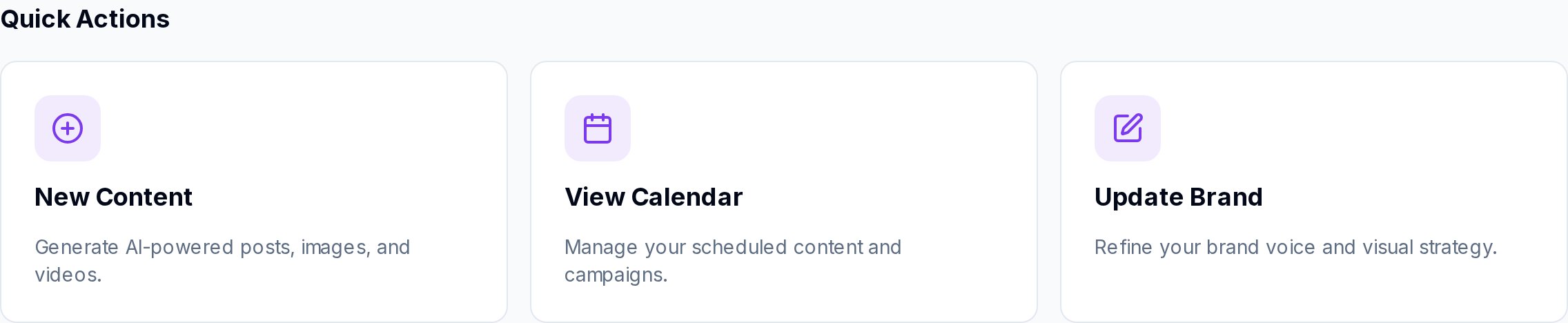
Three quick-action cards give you one-click access to common tasks:
- New Content — Jump straight to the Content Generator
- View Calendar — Open your content calendar to see scheduled posts
- Update Brand — Edit your brand identity settings
Below the quick actions, you'll also find the Storage Status widget (showing your plan usage) and the Content Breakdown section (a bar chart of your content by type).
Troubleshooting
- Dashboard shows no data: Make sure you have created some content or connected social accounts. The dashboard reflects only data linked to your active brand context.
- Stats seem incorrect: Try switching the brand context dropdown or refreshing the page. Data is filtered by the selected brand.
- Platform Analytics is empty: Visit the Connections page to link your social media accounts first.